Firefox Setup: Privacy, Interface and LibreWolf
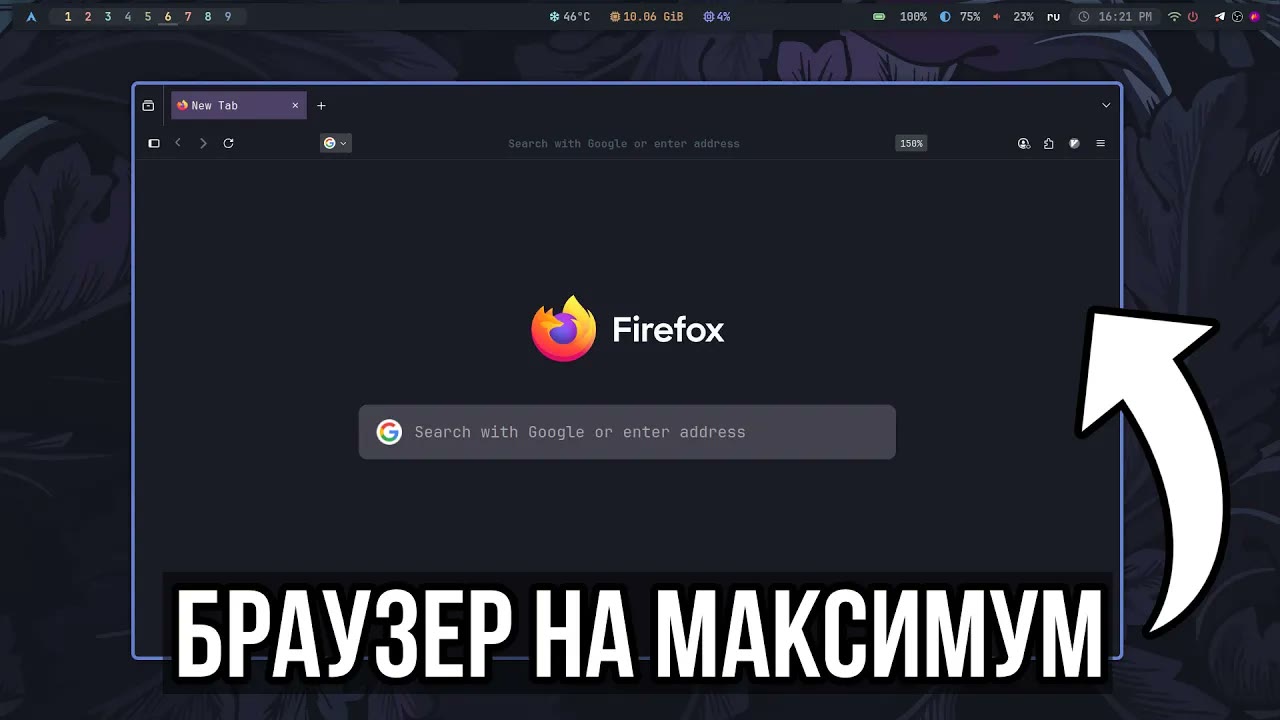
A fresh Firefox greets you with notifications, sponsored tiles on the new tab, telemetry and an interface that doesn't fit my BSPWM desktop at all. Under my videos people often ask what my browser looks like and how to make theirs the same.
This article is a complete Firefox setup in three areas: privacy, interface and extensions. Plus two ways to avoid doing it all by hand every time: the ready-made LibreWolf and a declarative configuration in NixOS.
Why Firefox and not Chromium
I use two browsers. Chromium is the backup: separate accounts, learning services, a second mailbox. Firefox is the main one, and the reason is practical: it gives much more control.
- Hundreds of internal settings are available through
about:configand can live in a singleuser.jsfile. - The browser interface can be restyled with plain CSS through
userChrome.css. - Ad blockers in Firefox kept the full extension API, while Chromium moved extensions to Manifest V3 with restrictions for blockers.
Newer browsers like Zen or Arc are interesting, but for now a Firefox tuned to my needs is enough.
Where the profile is and how settings work
Everything we'll change lives in the profile folder. Open about:profiles and find the "Root Directory" line of the profile in use. It's usually something like ~/.mozilla/firefox/xxxxxxxx.default-release/ — yours will have a different name.
In the profile folder we care about:
| File | What it does |
|---|---|
user.js |
about:config settings, applied on every launch |
chrome/userChrome.css |
interface styles: toolbars, tabs, buttons |
chrome/userContent.css |
styles for browser pages such as the new tab |
The main advantage of user.js is reproducibility. Instead of clicking through about:config after every reinstall, you keep the file in git and just copy it into the profile.
The line format is simple. Take the setting name from about:config and set the value you want:
user_pref("browser.newtabpage.activity-stream.showSponsored", false);
user_pref("browser.newtabpage.activity-stream.showSponsoredTopSites", false);
user_pref("browser.urlbar.suggest.calculator", true);
The last line enables a calculator right in the address bar: type an expression and see the result immediately. That's how I quickly estimate monthly income and convert currencies.
After changing user.js, close the browser completely — all windows and processes — and start it again.
Privacy: turning off telemetry
By default Firefox sends reports, takes part in studies and shows sponsored content. All of this is disabled with settings, and you don't have to collect them from forums — there are ready, proven sets.
- Disable-Firefox-Telemetry-and-Data-Collection — a list of settings that turn off telemetry, reports, pings and data collection.
- Betterfox — a broader
user.jswith sections for speed, privacy and security. It's well commented, so it's easy to pick only what you need.
My advice is not to copy a huge user.js wholesale without reading it. Some settings break familiar things — for example, staying logged in to sites under aggressive cookie clearing. Take a basic block, test it for a week and add the rest one by one.
There's a catch: Mozilla renames and removes settings between versions. A set collected a year ago may silently stop working. That's why popular projects like Betterfox are more convenient than home-made lists: they're updated for new versions.
LibreWolf: privacy out of the box
If you don't want to maintain your own user.js, there's LibreWolf. It's a Firefox build with privacy settings already enabled:
- telemetry, studies and crash reports are fully disabled;
- privacy-respecting search engines by default, search suggestions off;
- uBlock Origin comes preinstalled;
- cookies and site data are deleted on close;
- fingerprinting protection (Resist Fingerprinting) and HTTPS-Only mode are on.
The flip side of the same settings: DRM is disabled, so protected video on some services won't play. Firefox Sync is off, and fingerprinting protection can make some sites behave oddly. You can turn all of this back on, but then you partly return to regular Firefox.
For now I'm staying on my tuned Firefox. I see LibreWolf as a replacement for Chromium in the second-browser role: Chromium is harder to fit into my desktop setup.
Interface: userChrome.css
The most visible part is the look. Firefox ignores userChrome.css by default, so first enable support in user.js:
user_pref("toolkit.legacyUserProfileCustomizations.stylesheets", true);
Then create a chrome folder in the profile and put userChrome.css and userContent.css there. The first holds styles for toolbars, tabs and the address bar, plus fonts and colors. The second styles internal pages, for example a minimalist new tab without tiles and ads.
You don't have to start from scratch. I borrow ideas from other people's dotfiles on GitHub: you can find a ready minimalist Firefox there and take only the pieces you need. My configs are in the firefox folder of the bspwm-dotfiles repository.
A practical way to understand someone else's styles is to comment out blocks one at a time and restart the browser. You quickly see which piece does what and keep only what you need.
Extensions I install
- uBlock Origin — an ad and tracker blocker. The first thing worth installing in regular Firefox.
- Dark Reader — a dark theme for any site, so you don't go blind at night.
- FoxyProxy — several proxies with rule-based switching: separate profiles for different tasks, for Burp Suite during testing and for Tor.
- Translate Web Pages — translation of selected text from the context menu or of whole pages.
- Vimium — keyboard control. Press
f, hints appear on links, type the letters — and you navigate without a mouse.
Every extension gets access to your pages. Install only what you actually use, and only from the official add-ons catalog.
Moving everything to NixOS
Configuring a browser by hand is exactly what's annoying on every reinstall. In NixOS the browser is described in the configuration, and after nixos-rebuild switch it appears with all its settings and extensions. How this approach works in general is covered in NixOS after Arch Linux.
NixOS has a programs.firefox module. about:config settings go into preferences, and extensions into the ExtensionSettings policy:
programs.firefox = {
  enable = true;
  preferences = {
    "toolkit.legacyUserProfileCustomizations.stylesheets" = true;
    "browser.urlbar.suggest.calculator" = true;
    "browser.newtabpage.activity-stream.showSponsored" = false;
  };
  policies.ExtensionSettings = {
    "[email protected]" = {
      installation_mode = "force_installed";
      install_url = "https://addons.mozilla.org/firefox/downloads/latest/ublock-origin/latest.xpi";
    };
    "[email protected]" = {
      installation_mode = "force_installed";
      install_url = "https://addons.mozilla.org/firefox/downloads/latest/darkreader/latest.xpi";
    };
  };
};
For Chromium, extensions are listed by their Chrome Web Store ID — the part of the extension page URL:
programs.chromium = {
  enable = true;
  extensions = [
    "eimadpbcbfnmbkopoojfekhnkhdbieeh" # Dark Reader
  ];
};
If you use Home Manager, it has similar programs.firefox and programs.chromium modules with profile configuration. Look up option names on search.nixos.org and in the Home Manager documentation: they change more often than Firefox's core settings.
Who doesn't need all this
- If you only use the browser for a couple of sites and email, uBlock Origin and turning off sponsored tiles in settings are enough.
- If you watch DRM-protected services, LibreWolf will get in the way without extra configuration.
- If you're not ready to figure out why a site stopped working after the next setting, don't take aggressive
user.jssets wholesale.
The main idea: configure the browser once and keep the settings in files. Then reinstalling the system or moving to a new computer takes minutes rather than an evening. If you're building an open software stack the same way, have a look at the review of open source apps after 90 days of use.