Arch Linux With BSPWM: Installing and Configuring My Setup
The most common question under my videos is how to set up the same Linux: a bar with hardware info, fast workspace navigation, an app menu. All of this is my setup on Arch Linux with the BSPWM tiling window manager, and it's open: the configs and the installer live in the bspwm-dotfiles repository.
This article covers what the setup can do, how its configs are organized, how to install Arch Linux with BSPWM following my guide, and how to fix typical problems after installation. I'm currently moving the setup to NixOS, but the Arch version still works and is a good way to get into tiling window managers.
What the setup is made of
- OS: Arch Linux
- Window manager: BSPWM
- Hotkeys: sxhkd
- Bar: Polybar
- Compositor: Picom — animations and transparency
- Terminal: Alacritty with the fish shell
- App launcher: Rofi
- Notifications: Dunst
Plus a customized Firefox, a set of scripts in ~/bin, over 300 wallpapers and warm evening screen colors via redshift. The whole system uses less than 700 MB of RAM when idle.
Polybar: what's on the bar
On the left is a Rofi app menu with several modes: running programs, an application list and a list of open windows. Next come seven workspaces: there were five at first, but after six months it got cramped.
Then three hardware indicators: CPU temperature, memory load and CPU load. Then battery, brightness and sound — brightness and volume change with the mouse wheel, and clicking the sound icon mutes it. A Caps Lock indicator, keyboard layout, time (click for the date), a Wi-Fi module and a power menu.
Keyboard control
The main advantage of a tiling manager is that windows arrange themselves, and all control is bound to keys. The main shortcuts from my sxhkdrc:
| Keys | Action |
|---|---|
Super + Enter |
Terminal |
Super + D |
Rofi app menu |
Super + X |
Power menu |
Super + C |
Close window |
Super + Space |
Toggle floating and tiled window mode |
Super + 1…7 |
Go to a workspace |
Super + Shift + 1…7 |
Move the window to a workspace |
Super + H/J/K/L |
Focus the neighboring window, Vim-style |
Super + Alt + H/J/K/L |
Swap the window with its neighbor |
Super + F |
Fullscreen |
Super + W |
Random wallpaper |
Super + P |
Hide or show Polybar |
Super + Shift + F |
Firefox |
Super + Shift + N |
Thunar file manager |
Super + Shift + X |
Color picker: screen color to the clipboard |
Super + Shift + K |
calcurse calendar in the terminal |
Print |
Screenshot with Flameshot |
A floating window can be moved by holding Super and the left mouse button, and resized with Super and the right button. The layout switches on Shift + Alt via my script from ~/bin: it detects the current layout, switches to the other one and shows a notification. If you need a different language, you just change one value in the script.
How the configs are organized
Hotkeys live in ~/.config/sxhkd/sxhkdrc. The format is simple: first the key combination, then the command on the next line:
# Terminal
super + Return
    alacritty

# Firefox in private mode
super + shift + i
    firefox --private-window
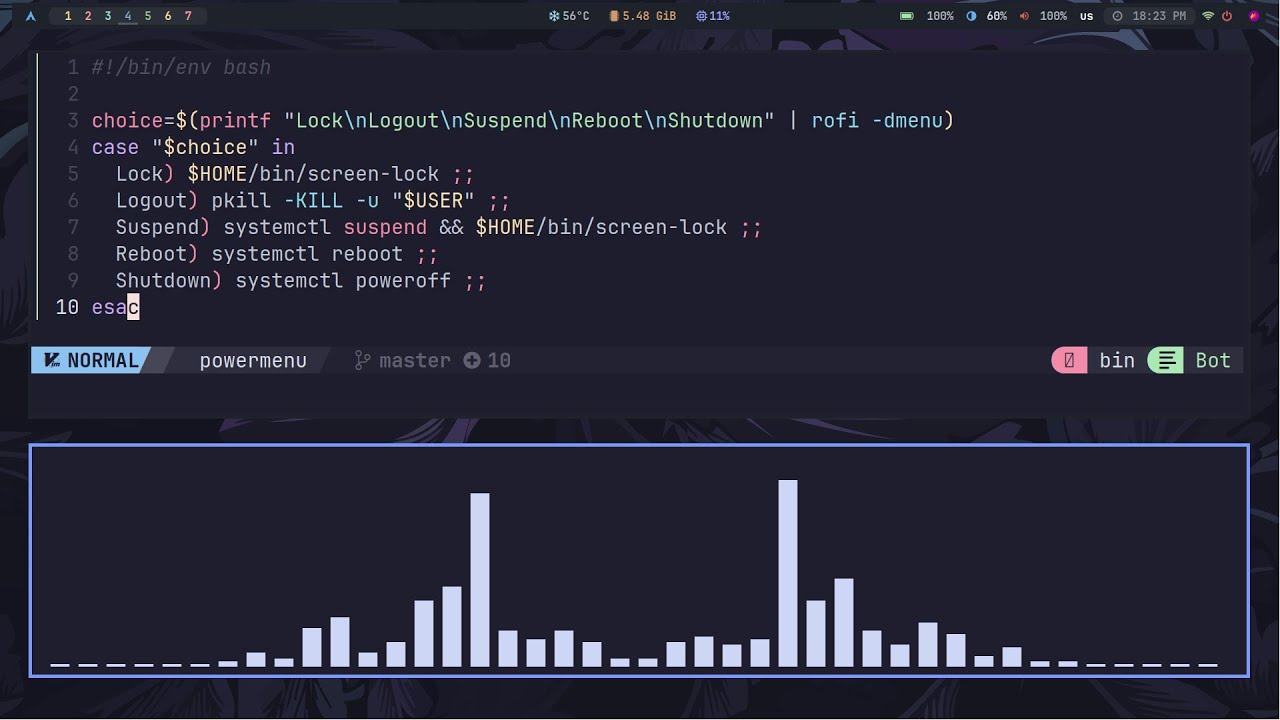
After editing, the config is reloaded without restarting the session: Super + Esc + R. That's actually how I fixed a bug right while recording the video: the power menu was called by the wrong path, I fixed the path and reloaded the config.
Starting the setup itself is described in ~/.config/bspwm/bspwmrc: workspaces, window parameters, a random wallpaper, launching Polybar, the notification daemon, a low-battery indicator, redshift, the Picom compositor and autostart for the programs you need. It's a regular shell script, so adding your program to autostart is one line.
Installing Arch Linux for the setup
The current commands always live in the guide in the repository — if something differs from the video, trust the guide. The overall outline:
- GPT partitioning for UEFI: an EFI partition on FAT32 of about 512 MB and a second partition for the rest of the disk. On NVMe drives partition names look like
/dev/nvme0n1p1instead of/dev/sda1. - Encryption: the second partition is encrypted with LUKS (
cryptsetup luksFormat), and an LVM with arootlogical volume is created inside it. The system will ask for the disk password at every boot. - The base system:
pacstrapinstalls the kernel, firmware,base-devel,lvm2, network utilities and editors, thenfstabis generated. - Configuration in chroot:
ru_RUanden_USUTF-8 locales, the time zone, hostname, root password, auseraccount in thewheelandvideogroups, and network services. - initramfs:
encryptandlvm2are added toHOOKSin/etc/mkinitcpio.conf, thenmkinitcpio -p linux. - Bootloader: systemd-boot (
bootctl install) and an entry that specifies the UUID of the encrypted partition.
I recommend keeping the username user: the setup is configured for it. If you're installing in a virtual machine, enable EFI boot and 3D acceleration.
Running the setup installer
After rebooting and logging in as user, you install the X server, BSPWM itself and git, and in /etc/X11/xinit/xinitrc you replace other exec lines with exec bspwm. Then:
git clone https://github.com/Zproger/bspwm-dotfiles.git
cd bspwm-dotfiles
python3 Builder/install.py
startx
The installer asks what to do: copy the configs, refresh the package databases, install BASE_PACKAGES — the setup won't work without them — and optionally DEV_PACKAGES for development. It doesn't install NVIDIA drivers: everyone's graphics card is different, so it's better to install them yourself following the Arch Wiki.
Before running it, look at Builder/packages.py. I built the setup for myself, and the right move is to fork it and adapt the package list and settings to your own needs.
How to fix typical problems
Broken icons in Rofi and Polybar. Sometimes after a font update some glyphs disappear from it, and the menu gets misaligned. The fix is to replace the characters: find the broken icons in ~/.config/rofi and in the Polybar module files in ~/.config/polybar and swap them for others. The same goes for the Wi-Fi menu script that the network module calls.
The battery doesn't work. Different laptops have different battery and adapter names. Look them up:
ls /sys/class/power_supply
# AC  BAT0
and set them in the battery module of the Polybar config.
Brightness or temperature doesn't work. This depends on your graphics card and CPU. Search the Arch Wiki for your graphics card's driver and open the Polybar documentation for the module you need. If a module stopped loading after a Polybar update, compare its parameters with the current documentation: options sometimes get renamed.
Why I prefer it this way
- Fast installation. About 15 minutes for the system, after which everything you need is installed and configured automatically.
- Windows open the way I want, without tabs or manual dragging.
- The system can be programmed: any action on any key, any program in autostart.
An overview of the utilities I use on top of this setup is in 10 useful Linux programs, and why I'm building the next version on NixOS is explained in NixOS after Arch Linux. If you're still not sure about leaving Windows, start with why I switched from Windows to Linux.