Making Linux More Convenient: Polybar, Rofi and My Utilities
The same questions come up under every one of my Linux videos: "What's that bar at the top?", "How do you launch programs so fast?", "Where's that menu from?". Over more than four years on Linux I've put together a set of tools without which the system no longer feels like mine. Many of them aren't widely known simply because people rarely talk about them.
This article covers what I use every day to make Linux more convenient: the Polybar panel and its counterpart Waybar, the Rofi launcher with my own modes, the mpv console player, terminal interfaces for git and Docker, and a few small utilities. My configs are in the public bspwm-dotfiles repository.
Polybar: a bar built from modules
Polybar is the top bar in my BSPWM setup. It holds workspaces, a menu, CPU temperature, memory and CPU load, battery, brightness, sound, keyboard layout, a calendar, Wi-Fi, a power menu and the tray.
Its main feature is modularity. Need five workspaces — set five. Need a player in the center — add the player module. Any style works too: dark, light, matching your wallpaper. The project documentation has a long list of built-in modules — ALSA and PulseAudio, brightness, battery, network, MPD, workspaces, temperature — and you can plug in any script of your own.
The question I got most often was where to get the paths for brightness and battery. They're described in the modules. For example, brightness:
[module/backlight]
type = internal/backlight
card = amdgpu_bl0
enable-scroll = true
format = <ramp> <label>
label = %percentage%%
The card name depends on your hardware: you can see it with ls /sys/class/backlight. The battery needs the names of the battery and the adapter:
ls /sys/class/power_supply
# AC  BAT0
[module/battery]
type = internal/battery
battery = BAT0
adapter = AC
full-at = 99
Modules are placed in three areas — left, center and right. To remove, say, temperature and memory, just delete their names from the modules-right line and save the file.
Waybar for Wayland
Polybar runs on X11. I'm gradually moving to Wayland, NixOS and Hyprland, and there it's better to use Waybar. It's even easier to configure: modules are described in JSON and the look in plain CSS, so you can make it look exactly like Polybar. Workspaces in Hyprland are dynamic: the bar shows the ones in use, and new ones appear as you open windows.
Rofi: a launcher that turns into anything
Rofi is a menu that launches programs by default but can actually show any list. Running it in a given mode:
rofi -show drun            # list of applications
rofi -show run             # commands from PATH
rofi -show drun -theme ~/.config/rofi/themes/dark.rasi
Themes are written in a CSS-like format and chosen right at launch. That's handy: one theme for launching programs, another for the Wi-Fi menu, a third full-screen one for games.
The most interesting part is custom modes. I have entries for switching between webcams, downloading audio and video from YouTube with yt-dlp, and a power menu. The power menu is a plain script: a list of actions is passed to Rofi in -dmenu mode, and then case runs the chosen one:
#!/usr/bin/env bash
choice=$(printf "lock\nlogout\nreboot\nshutdown" | rofi -dmenu -p "power")

case "$choice" in
    lock) loginctl lock-session ;;
    logout) bspc quit ;;
    reboot) systemctl reboot ;;
    shutdown) systemctl poweroff ;;
esac
There are plenty of ready-made Rofi scripts: an emoji picker, a calculator that copies the result, 2FA codes, bookmarks, MPD and Spotify control, Bluetooth via rofi-bluetooth, Wi-Fi management, searching Obsidian notes and launching games from your Steam library. Hotkey — list of games — launch in a second.
mpv: a player and a webcam window
I use mpv as my main player: it opens audio and video straight from the terminal and barely uses any resources. A non-obvious feature is showing a webcam without separate programs:
mpv av://v4l2:/dev/video0
/dev/video0 is the laptop's built-in camera; an external one will usually be /dev/video1. For me this replaces apps like Cheese: I don't need their effects and settings, just the camera picture. And it's convenient to call this command from Rofi.
LazyGit and LazyDocker: git and Docker in a terminal UI
LazyGit shows the repository status, file changes, branches and the log, and lets you commit and switch branches without remembering commands. LazyDocker does the same for Docker: containers and their status, logs, images, volumes and networks in one window.
Both run in a regular terminal, so they're especially useful on servers without a graphical shell: connect over SSH, run lazydocker — and you see the whole state at once.
dysk, NeoHtop and other utilities for keeping an eye on the system
When Docker suddenly takes up extra gigabytes, you need to quickly see how much space is left. df output is hard to read, and lsblk shows the disk layout but not free space. dysk prints a clear table: partition, filesystem, used, free, size and mount point.
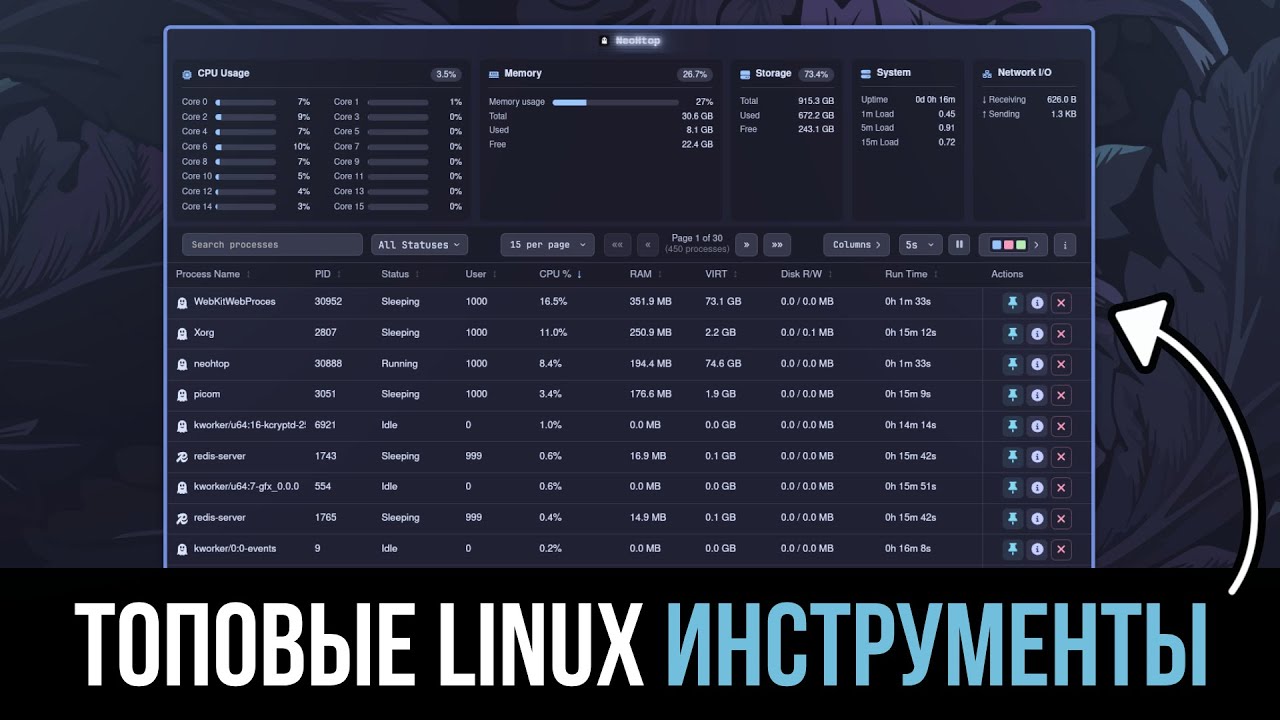
For the full load picture I use NeoHtop — a graphical system monitor built on Tauri with a Rust backend. It shows CPU cores, memory, disks, network and a process list with details down to environment variables, plus lots of color themes. More on monitoring in a separate article on Linux monitoring.
redshift and wlsunset: warm colors in the evening
redshift automatically shifts the screen to warmer tones in the evening. The config ~/.config/redshift/redshift.conf:
[redshift]
temp-day=5700
temp-night=3500
location-provider=manual

[manual]
lat=50.4
lon=30.5
redshift calculates sunset and sunrise from the coordinates, so they need to match your time zone. Redshift works on X11; for Wayland there's wlsunset:
wlsunset -l 50.4 -L 30.5
I've already added it to my new Hyprland setup.
Small things that save time
- hexyl and hyx — hexyl shows a file dump in a colored hex view, and hyx lets you edit bytes with Vim-style navigation.
- cloc — cloc counts lines of code:
cloc .prints the number of files, lines of code, comments and blank lines for each language in the project. - bat — bat shows files with syntax highlighting and line numbers. I have it in place of
catvia an alias inconfig.fish.
Where to start
| Task | Tool |
|---|---|
| Your own bar on X11 / Wayland | Polybar / Waybar |
| Launching programs and custom menus | Rofi |
| Player and webcam | mpv |
| Git and Docker without memorizing commands | LazyGit, LazyDocker |
| Free disk space | dysk |
| A warm screen in the evening | redshift / wlsunset |
| Reading files with highlighting | bat |
If you're just putting your environment together, start with Rofi and bat: the effect is immediate and setup takes minutes. A bar is worth building once you know which data you actually want in front of you. More utilities are in 10 useful Linux programs, and why I'm building my new setup on NixOS is explained in NixOS after Arch Linux.